
Midnight Polaroids
Dream PopNostalgic1:02
A dream pop prompt: soft synth pads, slow tempo and a nostalgic melody on top.
Describe the track you want in a sentence. Set the genre, mood, vocals and length, and the studio returns several original versions you can audition, keep, edit and export.
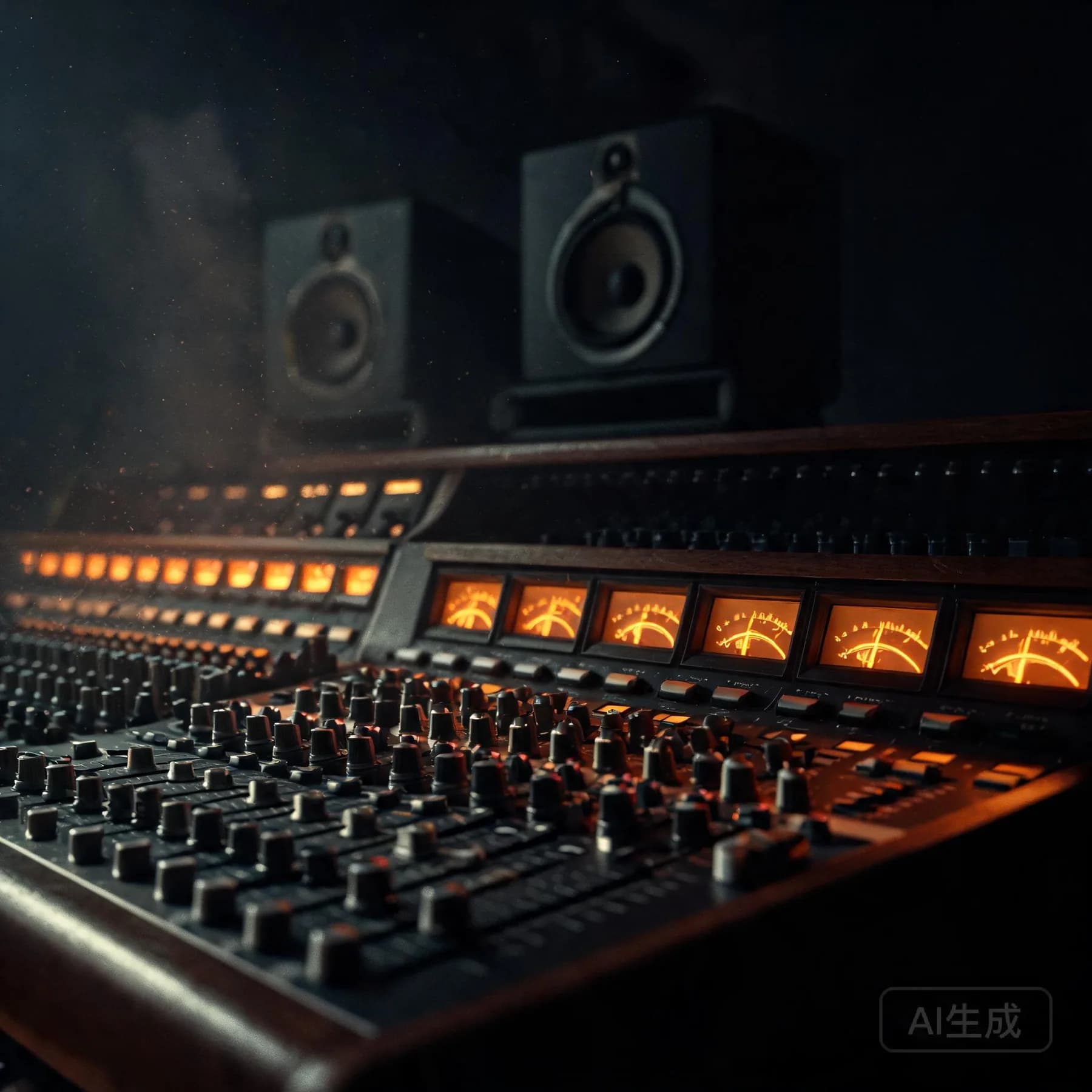
These are renders from the studio, not library loops. Play them back to back and listen to how far a single written sentence can travel.
A dream pop prompt: soft synth pads, slow tempo and a nostalgic melody on top.
Ask for low-lit R&B and the studio keeps the drums sparse and the sub deep.
A cinematic prompt builds from one sustained note into a wide, panoramic theme.
Shorten the length and ask for a faster, low-end-heavy groove — the result stays loop-friendly.
Audio only downloads when you press play, and every render here comes from the studio's own generation pipeline.
Pick a direction to see the prompt shape we recommend for it.
Lead with the feeling, then the instruments: "nostalgic dream pop about an old photograph, soft synth pads, reverb-heavy female vocal, slow tempo".
A preset only fills the fields you have left empty — nothing overwrites what you already typed.
Generating music here is a loop rather than a single button. You describe the track, choose the shape you want, audition what comes back, then refine the version you keep. Arrangement, performance and mixdown are handled by the studio; the decisions about direction stay with you.
Write one or two sentences about the track. If the words themselves matter more than the description, use the lyrics to song workflow instead.
Genre, mood, vocals and length come first. Advanced settings add tempo, key, structure and a negative prompt for the things you do not want to hear.
A generation returns several labelled versions with waveforms you can scrub. Keep the one that fits and the rest stay in your history for reference.
Open the kept version in the editor to adjust sections, rewrite lyrics or split stems, then export the file your plan allows.
Credits are only spent when a generation actually runs, and a failed job releases its credits automatically. The pricing page lists what each operation costs, including editing and stem exports.
One prompt box covers more ground than a single-format song tool, because the output format is a setting rather than a separate product. The three shapes below account for most first sessions.
Add vocals, a genre and a mood and the studio returns a structured song with an intro, verses, a chorus and a bridge. The AI song generator explains how that structure is assembled.
Set vocals to instrumental for score-like music you can talk over, cut under a video or run in the background. The instrumental generator covers length and tempo choices.
Give it a tempo and a drum-led prompt and you get loopable material to write over. The AI beat maker goes into BPM, key and style in more detail.
Many sessions start from a job rather than a genre: scoring a video edit, opening a podcast or building a game soundtrack. Those paths are broken down on the music for YouTube, podcast music and game music pages.
Vague prompts produce vague music. The fastest improvement is to describe arrangement and instrumentation instead of stacking adjectives, because those are the parts the studio can act on.
"Solo piano first, drums enter around 30 seconds, the chorus opens up with layered vocals" gives a plan to follow. Temperature words like "beautiful" do not.
"Warm analogue strings", "brushed drums", "wide plate reverb", "muted Rhodes" produce far more specific results than "professional production".
List what you do not want — "no trap hats, no autotune, no long reverb tails" — in the negative prompt rather than editing your main description.
Keep the descriptive words for what is genuinely unique to your idea and let genre, mood and length do the rest. If a result is close but not right, adjust one variable at a time so you can hear which change did the work.
Generation is the midpoint. Everything you keep stays editable: sections can be renamed or split, lyrics can be rewritten line by line, and a render can be reused as the source for the next generation without losing the original.
Work on one part of the arrangement at a time — extend an outro, swap a chorus or regenerate a section while the rest of the track stays intact.
Remixing carries the source track into a fresh job, so the new render keeps a visible link back to the version it came from instead of becoming an orphan file.
Stem separation and stem exports depend on the provider behind your workspace. When the capability is unavailable the option is not shown, so you are never promised a format the studio cannot deliver.
Export formats, credit costs and refund behaviour are listed on the pricing page rather than hidden in a footnote, and the licensing page explains what each plan allows you to publish.
It is a tool that turns a written description into an audio file. In AI Music Studio you describe the track in a prompt box, set genre, mood, vocals and length, and the studio renders one or more original versions you can audition, edit and export. It replaces the blank-session problem, not the creative decision about what the track should do.
No. The prompt box and four dropdowns cover most of the decisions a first version needs. Advanced settings exist for people who want to specify tempo, key, structure or an instrumentation list, and every one of them is optional. If you can describe the track in words, you can generate it.
What you may do with a render depends on the plan you generated it under and the terms you accepted. The licensing page and the Terms of Service describe commercial use for Free, Pro and Studio plans; we do not publish blanket royalty-free or ownership claims that are not backed by those documents.
Genres include Dream Pop, Dark R&B, Indie Rock, Cinematic, Afrobeats and Lo-fi / Ambient. Moods cover nostalgic, euphoric, melancholic, energetic and calm. Leaving both on Auto lets the studio infer a direction from the words you wrote.
Requests are queued and then processed in the background, and the page shows the live job state instead of a bare spinner. Short instrumentals finish sooner than long songs with vocals. If a job fails, the credits held for that run are released automatically and you can retry with the same settings.
Describe the track you want to hear, pick a direction and generate a few versions. Every setting can be changed before you commit, and nothing is charged for browsing.
This environment runs the studio's mock provider, so renders are synthetic demonstration audio.