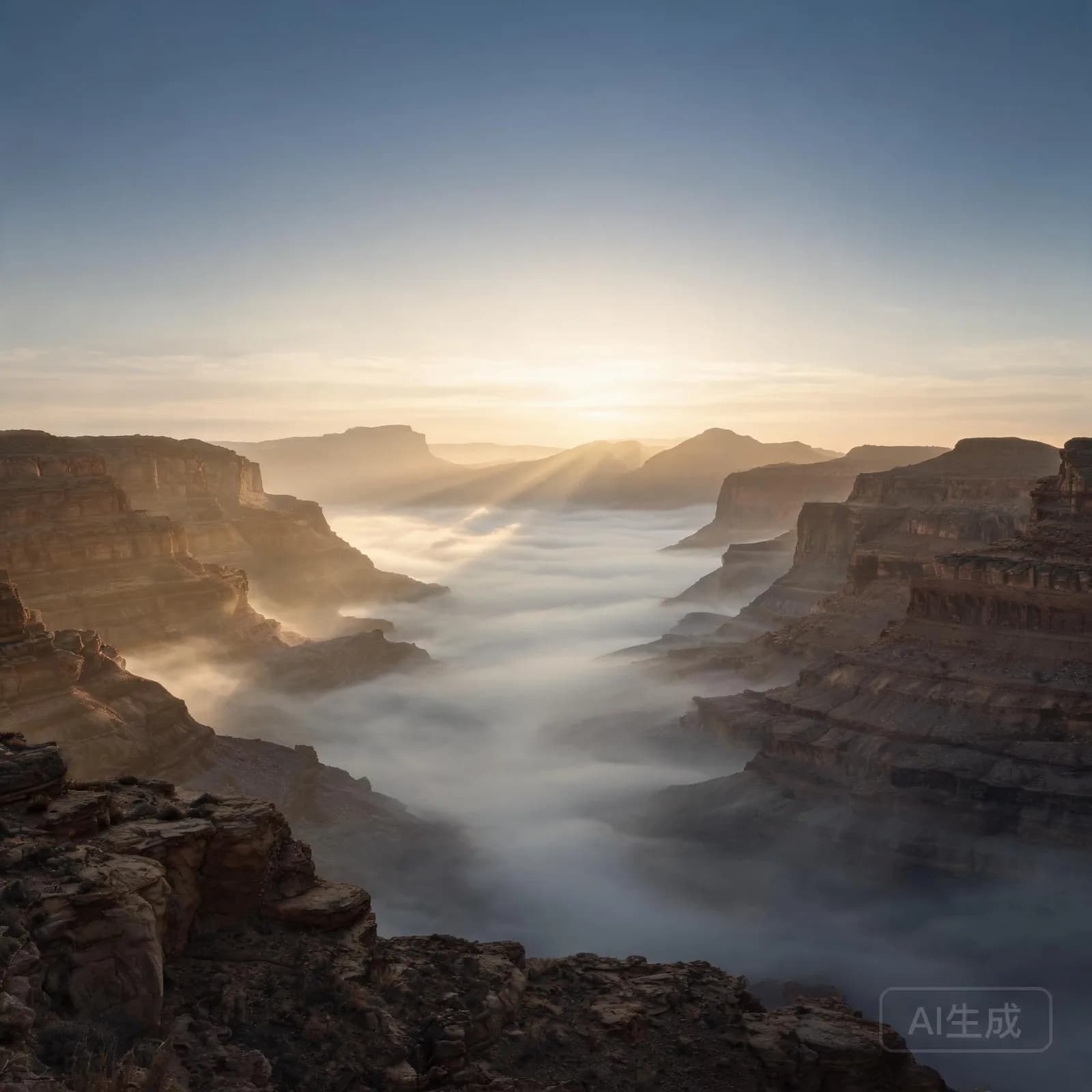
Somewhere Else
CinematicEpic1:10
Wide and patient — fits drone shots, travel montages and slow pans.
Generate music that follows your edit: choose the mood of the video, set a length that fits the cut, and export audio you can drop straight into the timeline.
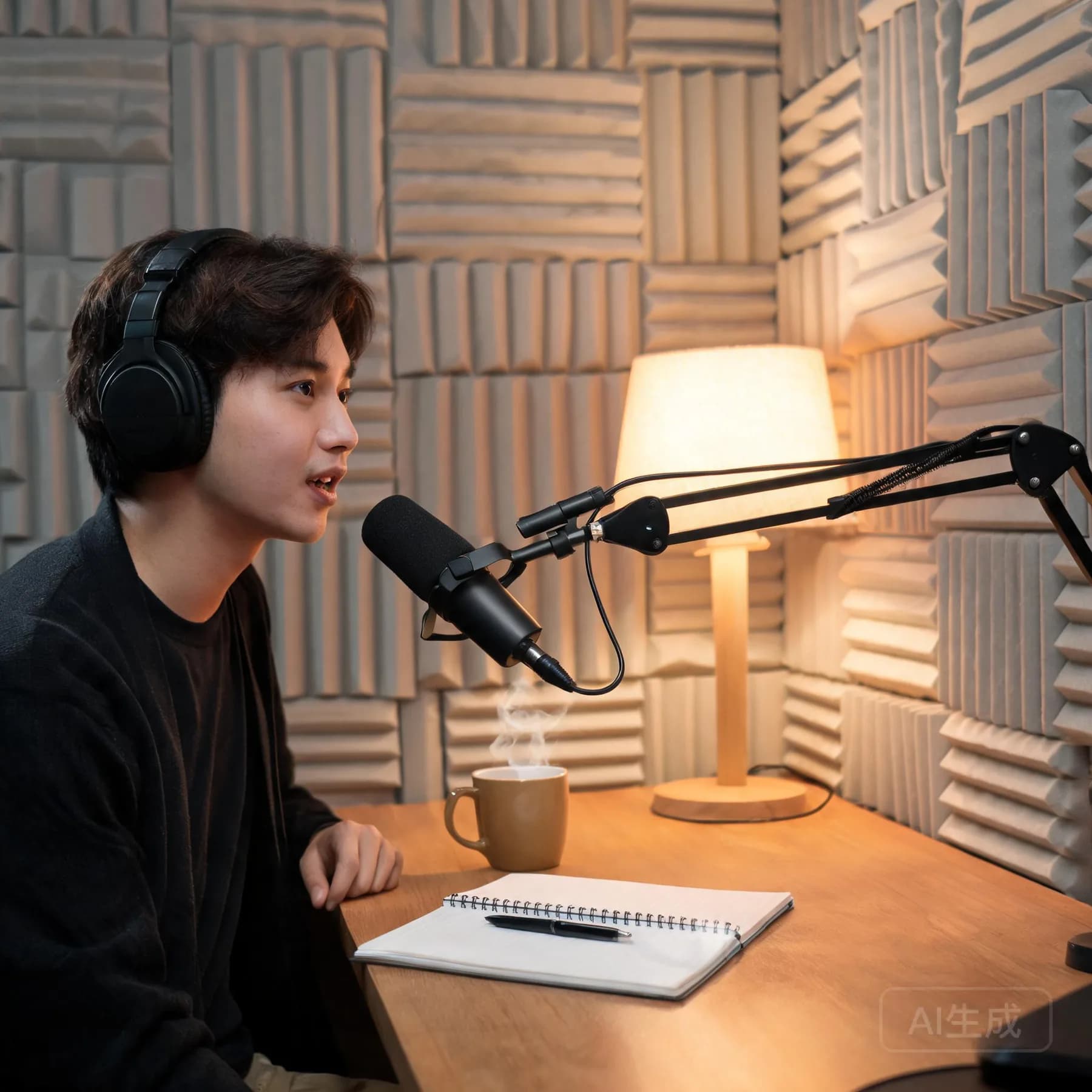
Play each one against your own footage: a travel montage, a talking-head explainer and a fast-cut sequence.
Wide and patient — fits drone shots, travel montages and slow pans.
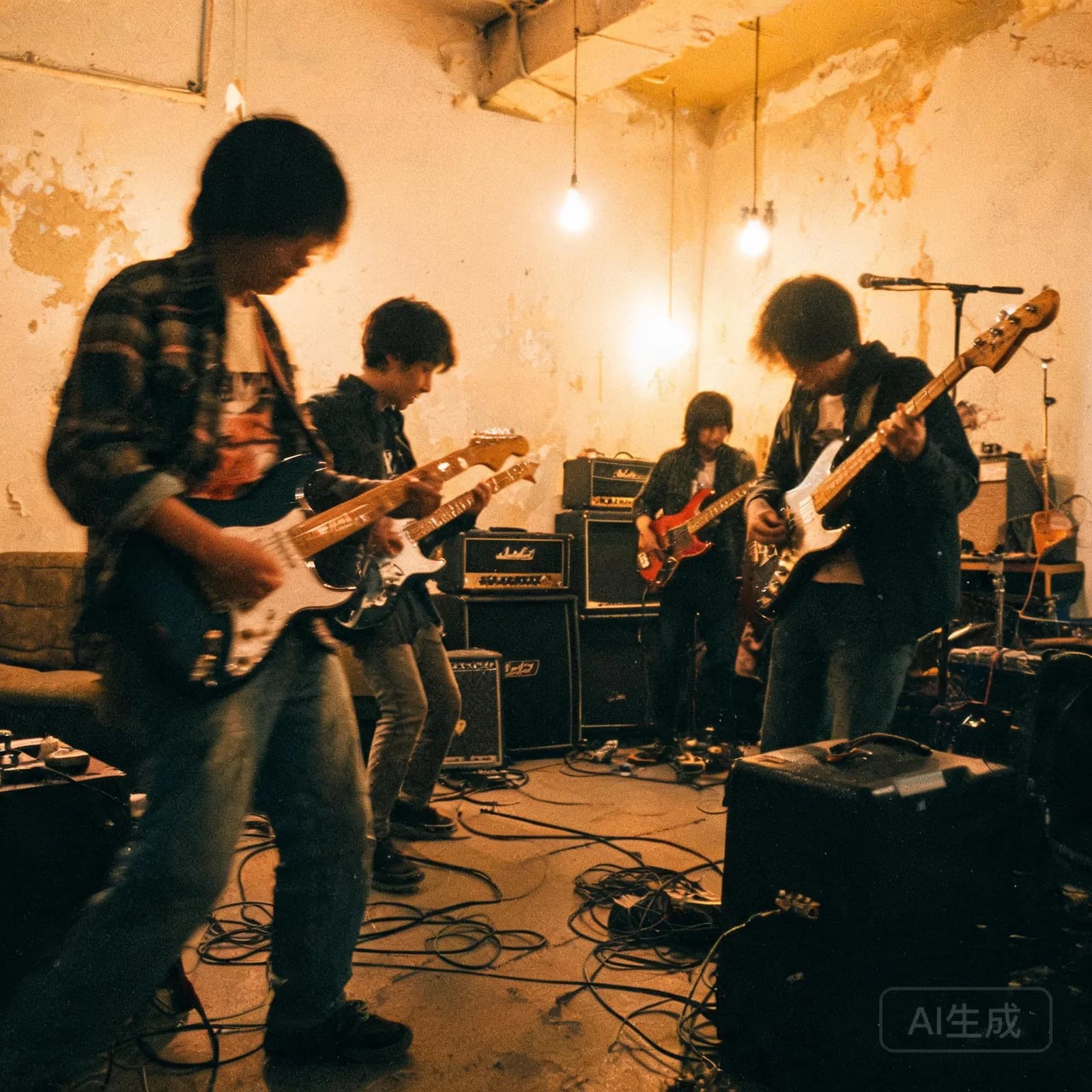
Guitar-led energy for fast cuts, action edits and quick montage sequences.
A steady electronic pulse that keeps pacing up through a long explainer.
Demo audio loads on play only, so the page stays light even with several previews on it.
Pick a format to see the music settings that suit it.
Instrumental, low dynamic range, steady tempo. Keep the bed repetitive and avoid lead instruments in the vocal register so speech stays intelligible at low volume.
Anything you generate stays editable: change the length or the arrangement before you commit to a render.
The edit decides the music, not the other way round. A vlog cut to a loose rhythm needs a bed that can survive jump cuts, while a tutorial benefits from something so even that viewers stop noticing it. These are the four patterns that come up most often.
Warm, mid-tempo and loopable. Generate a bed with an open ending so you can cut on any bar and still land on a clean transition.
Low-level, repetitive and instrumental. The instrumental generator covers how to keep the mid range open for a voice-over.
Thirty-second renders with a hook in the first two seconds. Generate the whole clip length instead of trimming a long track down to size.
Rhythm-led beds that keep energy up without masking commentary. Short loops work better here, and the game music page covers their loop behaviour.
Mood is the fastest way to make a bed feel intentional. The same footage reads as nostalgic, urgent or calm depending on register, tempo and how much space sits between the notes, so decide the emotional target before you choose a genre.
Slow tempo, soft transients, almost no melodic movement. Best for teaching, reviews and anything where a viewer is following steps.
Mid tempo with analogue textures and unresolved chords. Works for personal stories, recaps and retrospective formats.
Faster tempo, tighter drums and a defined pulse. Use it where the edit cuts quickly, and shorten the length so it does not outlast the sequence.
Ask for the mood in the prompt and set it in the dropdown as well. When a render feels close but slightly wrong, changing mood is usually more effective than rewriting the description.
Most claims on YouTube come from using a track that is already registered somewhere else. Generating your own render removes that specific risk because the audio is produced for your project, and the job history in your workspace records where each file came from.
That is not the same as a guarantee. Automated systems may still match similar recordings, and how you use the audio is your responsibility. The practical habits help more than assurances: keep the render in your works list, do not reuse audio you are not licensed for, and check the terms that apply to your plan.
The licensing page sets out permitted and prohibited use, the Terms of Service is the binding document, and the pricing page shows which plans include commercial use.
A channel theme is a brand asset, so it should be short, consistent and easy to trim. Generate an instrumental between fifteen and thirty seconds with a clear first bar, then reuse the same mood, genre and instrumentation for every future render so your episodes stay recognisable.
Cut from the first bar rather than the chorus. Renders that start with the full arrangement trim better than ones that fade in gradually.
Keep the instrumentation and change the tempo or register slightly so the outro feels related to the intro without being a copy of it.
Save the prompt that worked. Re-running the same text is the cheapest way to keep a long-running series sonically coherent.
The same approach works for audio-only shows — the podcast music page covers themes that sit under a host's voice rather than over video.
Renders made in AI Music Studio can be used according to the plan you generated them under. Free renders are for personal, non-commercial use, while paid plans include commercial use as described on the licensing page and in the Terms of Service. Check the documents rather than relying on a summary.
Generating your own music avoids using tracks that other creators have already registered, which removes one common cause of claims. It is not a guarantee: content ID systems can still match similar recordings, and you remain responsible for how you use the audio. Keep your render history so you can show where a track came from.
Yes. Short, instrumental renders work well as channel intros and outros. Ask for a fixed tempo, an open ending and no fade so the theme can be trimmed to five or ten seconds without sounding cut off, then reuse the same style across episodes.
Monetization terms follow your plan. Commercial use is included on paid plans and excluded on the free tier, and the licensing page sets out what is permitted and what is not, including redistribution of the audio as a standalone product.
Generate slightly longer than the final cut so you have room to trim, and prefer a steady arrangement over one with a big finale. If a video runs long, generate a two- or three-minute bed and loop it in the edit rather than generating an hour of audio.
Describe the mood of the edit, keep the vocal setting on instrumental and generate a bed sized for the cut.